Mastering Your Absence: A Comprehensive Guide on How to Set Up a Vacation Message in Outlook
In today’s interconnected global economy, maintaining seamless communication is paramount, even when you’re thousands of miles away enjoying a well-deserved break. A well-configured automatic reply in Outlook serves as your digital delegate, ensuring that critical communications are acknowledged and managed during your absence. This proactive approach not only upholds your professional image but also prevents potential client frustration and internal communication bottlenecks. Understanding precisely how to set up a vacation message in Outlook is therefore a fundamental skill for any professional planning to disconnect without disrupting their professional obligations.
The Indispensable Role of Automatic Replies in Professional Travel
The concept of an ‘out-of-office’ message transcends mere courtesy; it’s a strategic component of effective professional communication management. When embarking on travel, whether for leisure or business, your digital availability shifts. Outlook’s automatic replies feature, often referred to as ‘Out of Office’ (OOO), acts as a critical buffer, informing senders of your unavailability and, crucially, providing a clear path forward for urgent matters. This foresight minimizes the risk of missed opportunities, maintains client trust, and allows you to truly disengage without lingering professional anxieties.
Why Every Professional Needs a Robust Vacation Message Strategy
- Manages Expectations: Clearly communicates your absence and expected return, setting realistic response timelines.
- Prevents Urgency Escalation: Directs urgent inquiries to an alternative contact, preventing delays in critical operations.
- Maintains Professionalism: Reflects a commitment to responsiveness, even when physically unavailable.
- Reduces Inbox Clutter: For internal communications, it can discourage unnecessary emails that can wait until your return.
Step-by-Step: How to Set Up a Vacation Message in Outlook (Desktop Client)
Configuring your automatic replies in the Outlook desktop application is a straightforward process. This method offers granular control over who receives your message and the content they see.
Accessing Automatic Replies (Out of Office)
- Open your Outlook desktop application.
- Click on ‘File’ in the top-left corner.
- Under ‘Account Information’, you will see a large button labeled ‘Automatic Replies (Out of Office)’. Click this button.
Crafting Your Internal and External Messages
Outlook allows you to set different messages for senders within your organization and those outside. This is a powerful feature for tailoring your communication.
- In the ‘Automatic Replies’ dialog box, select ‘Send automatic replies’.
- Check the box for ‘Only send during this time range’ to specify your departure and return dates and times. This is crucial for automation.
- Navigate to the ‘Inside My Organization’ tab. Here, compose the message you want colleagues to receive. This can be more informal, perhaps directing them to shared resources or a specific team member.
- Switch to the ‘Outside My Organization’ tab. Check the box ‘Auto-reply to people outside my organization’. You can choose to reply to ‘My contacts only’ or ‘Anyone outside my organization’. For most professional scenarios, ‘Anyone outside my organization’ is recommended.
- Compose a professional, concise message for external contacts. This should include your return date and an alternative contact for urgent matters.
- Click ‘OK’ to save your settings.
Key Elements of an Effective Out-of-Office Message
- A clear statement of your absence and expected return date.
- A brief, professional reason for absence (e.g., ‘out of the office on leave’ or ‘traveling’).
- An alternative contact person or department, including their email address or phone number, for urgent issues.
- A polite closing, thanking the sender for their message.
Factoid: Did you know that the average business professional sends and receives approximately 120 emails per day? An effective out-of-office message ensures critical communications don’t get lost in this volume, even when you’re thousands of miles away, preserving vital business connections.
Configuring Your Vacation Message in Outlook Web App (OWA)
For those utilizing Outlook via a web browser (OWA), the process to set up a vacation message in Outlook is equally intuitive, albeit with a slightly different navigation path.
Navigating to Automatic Replies in OWA
- Log in to your Outlook Web App account.
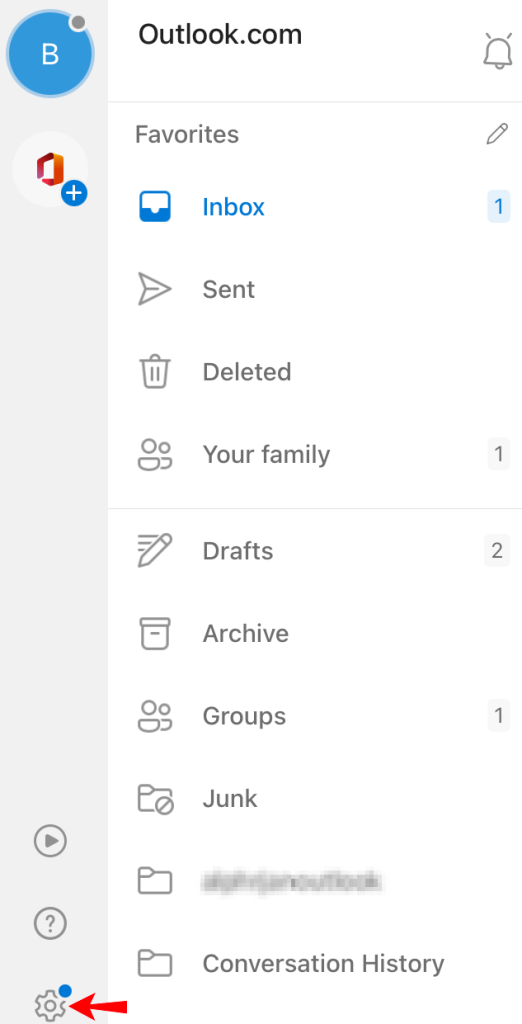
- Click on the ‘Settings’ cog icon (usually in the top-right corner).
- In the search bar, type ‘automatic replies’ or navigate to ‘Mail’ > ‘Automatic replies’.
- Similar to the desktop client, select ‘Turn on automatic replies’ and specify your date range.
- Compose your messages for ‘Send replies inside your organization’ and ‘Send replies outside your organization’. Ensure you select whether to send to ‘Only send replies to contacts’ or ‘Send replies to all external senders’.
- Click ‘Save’.
Best Practices for Your Out-of-Office Message
Beyond the technical setup, the content and strategy behind your vacation message significantly impact its effectiveness.
Clarity, Conciseness, and Professionalism
Your message should be direct and to the point. Avoid lengthy explanations or overly personal details. Maintain a professional tone consistent with your organization’s communication standards.
Providing Actionable Alternatives
The most critical element is often the alternative contact. Ensure the contact person is aware they may receive inquiries and is prepared to handle them. Provide their full name, title, and direct contact information (email/phone) if appropriate.
Common Pitfalls to Avoid
- Vague Return Dates: Always specify a clear return date, even if it’s an estimated one.
- Lack of Alternative Contact: Leaving senders without an option for urgent matters can lead to frustration.
- Overly Casual Tone: Even if you’re on vacation, maintain a professional demeanor in your automatic reply.
- Forgetting to Deactivate: Ensure you turn off your automatic reply upon your return to avoid confusion.
Factoid: Research indicates that businesses with clear communication protocols experience up to a 25% increase in client satisfaction. A well-orchestrated out-of-office message is a simple yet powerful tool in maintaining this high standard, even during your personal downtime.
Advanced Considerations for Seamless Absence
For a truly robust absence management strategy, consider these additional steps.
Integrating with Calendar Status
Update your Outlook calendar to show your availability as ‘Out of Office’ or ‘Away’. This visual cue helps colleagues and internal stakeholders understand your status at a glance.
Delegating Access (If Applicable)
For critical roles, consider delegating access to your inbox to a trusted colleague. This allows them to monitor urgent communications and respond on your behalf, ensuring absolute business continuity. This feature requires specific permissions and setup within your organization’s Exchange environment.
Testing Your Vacation Message
Before you depart, send a test email from an external account to your work email address. This verifies that your automatic reply is active, the content is correct, and the date range is functioning as intended.
Frequently Asked Questions About How to Set Up a Vacation Message in Outlook
Q1: Can I set different messages for internal and external contacts when I set up a vacation message in Outlook?
Yes, absolutely. Both the Outlook desktop client and the Outlook Web App (OWA) provide distinct tabs or sections for ‘Inside My Organization’ and ‘Outside My Organization’. This allows you to craft a more informal or detailed message for colleagues, perhaps including internal project updates or specific team member contacts, while maintaining a more concise and professional message for external clients and partners.
Q2: What happens if I forget to turn off my vacation message when I return to the office?
If you set a specific date range for your automatic replies, Outlook will automatically turn them off at the end of that period, mitigating this risk. However, if you manually activated them without a date range, forgetting to deactivate them means your automatic reply will continue to be sent to every incoming email. This can create confusion, suggest you’re still unavailable, and potentially lead to missed immediate opportunities or delayed responses from your end. It’s always best practice to double-check your settings upon your return.
Q3: Is there a way to forward emails to a colleague while I’m away, in addition to sending an automatic reply?
Yes, you can set up email forwarding in Outlook. This is typically done through ‘Rules’ rather than directly within the ‘Automatic Replies’ settings. In the desktop client, go to ‘File’ > ‘Manage Rules & Alerts’ and create a new rule to forward messages you receive to a specific person or public group. In OWA, go to ‘Settings’ > ‘Mail’ > ‘Rules’. Be cautious with forwarding all emails, as it can overwhelm a colleague’s inbox. Consider creating specific rules for forwarding only emails from certain senders or with particular keywords if a full forward is not necessary.